
Use the player
Control playback from the mini player at the bottom of the PodNotes view, or from the full player over it. Playback keeps going while you browse, change settings, or close the PodNotes view.
Open the full player
Section titled “Open the full player”When you select an episode in a list, PodNotes plays it and opens the full player over the view. When you select the episode that is already loaded, PodNotes opens the full player without changing playback. If the episode is paused, select Play there. To open the full player again later, do one of these:
- Select the mini player’s episode title or artwork.
- Run PodNotes: Show player from the command palette (
Ctrl+P, orCommand+Pon macOS).
To close the full player, select Collapse player, the down arrow at the top left, or press Escape. The episode keeps playing, and the mini player shows it.
Use the mini player
Section titled “Use the mini player”The mini player sits at the bottom of every page of the view while an episode is loaded. It shows the episode, its podcast, and the time left.
- In a narrow view, such as the sidebar or a phone, a thin line above it shows the progress. It has Capture timestamp, the clock button, and Play or Pause.
- In a wide view, it shows the elapsed time, a progress bar, and the time left, then Timestamp and Play or Pause.
The capture button inserts a timestamp into your note. See Capture timestamps.
Control playback
Section titled “Control playback”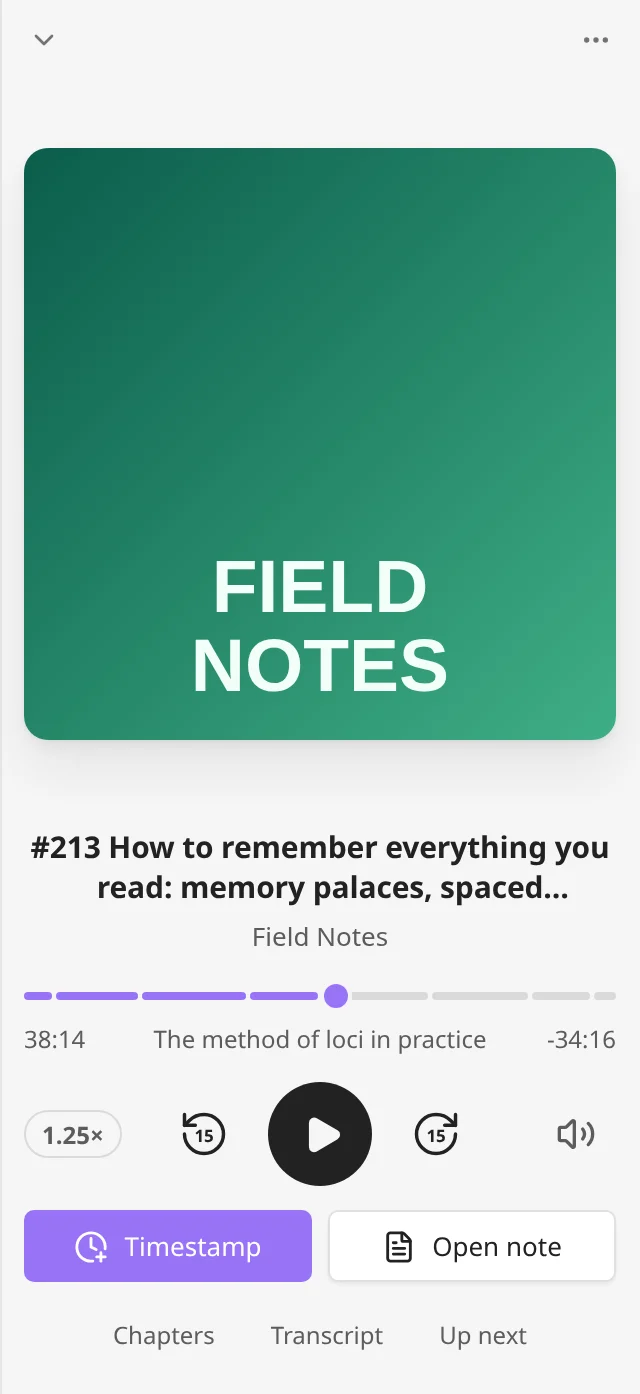
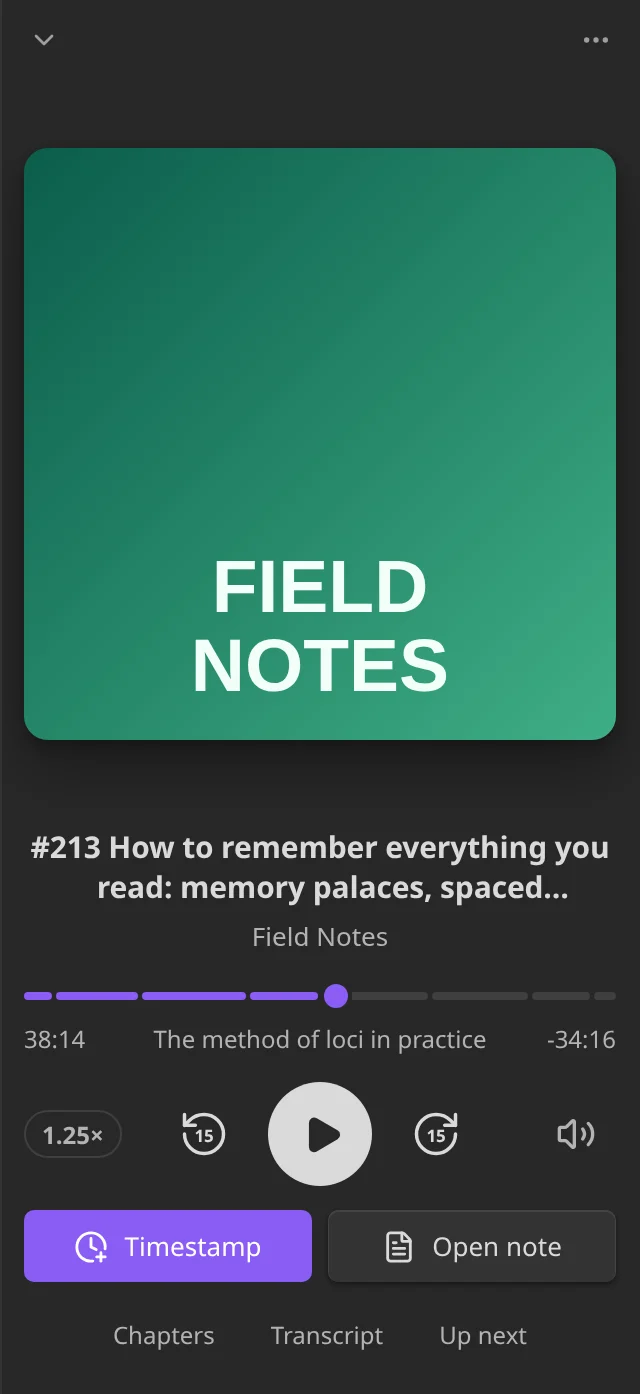
From top to bottom, the full player shows:
- The artwork, the episode title, and the podcast’s name. Select the podcast’s name to open its page.
- The progress bar. Drag it, or select a point on it, to move there. With chapters, the bar has a gap at the start of each chapter.
- The elapsed time, the current chapter, and the time left. Select the chapter’s title to open Chapters.
- The speed, such as
1.25×, the skip buttons, Play or Pause, and the volume button. - Timestamp and Create note or Open note.
- Chapters, Transcript, and Up next. See Use the panels.
The skip buttons show their length in seconds. They move back by Skip back (s) and forward by Skip forward (s), 15 seconds by default. Change both under Playback in Settings → PodNotes.
The volume button opens a slider. PodNotes uses one volume for every episode and keeps it when Obsidian restarts.
Episode options, the three-dot button at the top right, opens the episode menu, without Play and Mark as played.
Change the speed
Section titled “Change the speed”- In the full player, select the speed button.
- Select a speed from
0.75×to2×.
The speed lasts until a different episode loads. That episode, and the first one after Obsidian starts, plays at Default speed, which you set under Playback in Settings → PodNotes. PodNotes: Increase playback rate and PodNotes: Decrease playback rate change the speed by 0.1, from 0.5× to 4×. See Commands.
Take notes from the player
Section titled “Take notes from the player”- Timestamp inserts the playback time as a link in your note, and reads Added for a moment. See Capture timestamps.
- Create note creates the episode’s note and opens it. Once the note exists, the button reads Open note. See Create episode notes.
Except on a phone, a note that you open from the player opens next to the PodNotes view, so the player stays in sight. The Transcript panel’s Save as note and Open note open the note the same way. See Where a note opens.
Use the panels
Section titled “Use the panels”The full player has three panels:
- Chapters lists the episode’s chapters. It appears only when the episode’s feed gives chapters.
- Transcript shows the transcript that the episode’s feed publishes.
- Up next shows the queue.
In a narrow view, the panel buttons are at the bottom of the full player. Select one to show its panel in place of the artwork, and select it again to hide the panel. In a wide view, such as a tab in the main area, the panels are tabs beside the player.
Chapters
Section titled “Chapters”Each chapter shows its start time and title, and the current chapter is highlighted. Select a chapter to play from its start.
Read the transcript
Section titled “Read the transcript”The panel loads the transcript that the episode’s feed publishes. Its top line reads Feed transcript and Free.


- Select a line to play from that moment. Lines without a time cannot be selected.
- The panel highlights the line being spoken and scrolls with it. When you scroll yourself, it stops following. Select Follow to go back to the current line.
- To search, select Find in transcript, the magnifier, and type. The panel shows only the lines that match. Press
Enterfor the next match andShift+Enterfor the previous one. PressEscapeor select Close find to show every line again. - Save as note saves the feed’s transcript as a note, as PodNotes: Transcribe current episode does. It never transcribes the audio. Once the episode’s transcript note exists, the button reads Open note and opens it. Where the panel is narrow, such as in the sidebar or on a phone, the button shows only its icon: a page with a plus sign for Save as note, or a page with lines for Open note. See Transcribe episodes.
This clip opens Transcript, selects a line to play from it, and finds the word “walk”:
When the feed publishes no transcript, the panel says “No transcript in this feed”. For an audio episode, it offers Transcribe with OpenAI, or Transcribe with Deepgram when your speaker labels come from Deepgram, with a Paid tag:
- The button transcribes the audio with your own API key, and your provider bills you for it. See What transcription costs.
- Without the key on this device, a notice asks you to add it. See Set up an OpenAI key.
- The result is a transcript note, which PodNotes opens. The panel shows only transcripts that feeds publish, so it does not show the note’s lines.
- Once the episode’s transcript note exists, the panel offers Open note in place of the paid button, and also next to Retry when the transcript did not load.
- Offline, the paid button and Save as note are turned off, and Open note still works.
Up next
Section titled “Up next”The panel shows the episodes in the queue and their total time left. Select an episode to play it.
- To reorder, drag an episode by its grip, the six dots on its left. With the keyboard, move the focus to the grip and press
UporDown. - To remove an episode, select the cross on the right of its row.
- Edit opens the Queue page. See Use the queue and playlists.
Use the keyboard
Section titled “Use the keyboard”These keys work while the full player is open and the PodNotes view is active, for example after you select something in it:
| Key | What it does |
|---|---|
Space |
Plays or pauses. On a button, a field, or the progress bar, it does that control’s own job. |
Escape |
Closes the volume slider, then the transcript search, then the full player. A menu closes first, and a full-screen video leaves full screen first. |
These keys work on the control that has focus:
| Control | Keys |
|---|---|
| The progress bar | Left and Right move 5 seconds, Page Down and Page Up move 30 seconds, and Home and End go to the start and the end. Down and Up work as Left and Right. |
| A panel tab, in a wide view | Left and Right move to the previous or next panel, and Home and End go to the first or last. |
| A grip in Up next or on the Queue page | Up and Down move the episode one place. |
If your system is set to reduce motion, the PodNotes view turns off its animations.
Where playback starts
Section titled “Where playback starts”- An episode resumes where you stopped. An episode you finished starts from the beginning.
- When Obsidian starts, the mini player shows the episode you played last, paused at its saved position. It plays when you play it.
- When an episode ends, PodNotes marks it played and removes it from the queue and from your own playlists. It stays in Favorites. With Queue episodes I switch away from on, the first episode in the queue then starts.
- A move to the very end pauses the episode 0.25 seconds before its end.
- When you play an episode that ended, it starts from the beginning. It plays from a later position instead when you moved the position after it ended, or when another device synced a position before the end. See Sync between devices.
Watch video
Section titled “Watch video”A video episode plays in the full player while the PodNotes view is in the main window. Select the video to play or pause. To watch it on the whole screen, select Fullscreen, the button at its bottom right. To leave full screen, select the same button, now Exit fullscreen, or press Escape. That first Escape only leaves full screen and keeps the full player open. On an iPhone, Fullscreen opens the video in the system’s own full-screen player, which you leave with that player’s own control.
When the PodNotes view is in a popout window, the player there shows the episode’s artwork, and the video keeps playing. In a narrow view, an open panel takes the video’s place while the video plays.
When an episode cannot play
Section titled “When an episode cannot play”When an episode’s media cannot load, the full player shows “Could not load this episode’s media.” and a Retry button. The playback controls are turned off until the media loads, and Timestamp and Create note still work. A downloaded or local file that is gone from its path also shows this message. See Downloads and local files.